Overview
Student award payments (which are payments to students that are not connected to services performed or to prizes from public contests or competitions) are processed by the CALS Divisional Business Office. Student award payments include Scholarships, Welcome Checks, Research Support Payments, and Travel Awards.
- Use this Student Award Payment Form to submit student award payments to CALS Business Services for processing (instructions below).
- Use this guide when determining how to pay a student based on the description of the payment being made.
- This CALS-specific student travel handout can help determine whether reimbursement, P-card, or a student travel award is the appropriate method of payment.
- If you are unsure of how to pay a student, the Student Payment Tool can help guide you.
- Please contact Dave Stange and Tissa Jojo Thottan with any questions.
General Information
- Department personnel should complete the CALS Student Payment Form.
- Recipients must be UW-Madison students and be enrolled in the applicable term (i.e. Fall 2026).
- If the student is a Non-Resident Alien (NRA), or if you are unsure of the status of a student, please complete the NRA Scholarship Spreadsheet and email it to Glacier for confirmation of status.
- Attach the following documentation in the Student Award Payment Form:
- Documentation describing the award (award letter, website announcement, email notification, etc.)
- If NRA: NRA Scholarship Spreadsheet and the email confirmation from Glacier
- Please note that the deadlines for Welcome Checks are September 1 for the Fall semester and January 15 for the Spring semester.
Detailed Instructions
- Fill in the student’s First Name, Middle Name/ Initial and the Last Name
- Enter the student’s Campus ID or Student Information System ID (SIS ID)
- Do NOT provide a student’s Social Security Number
- The SIS ID is different than a student’s campus ID, which typically begins with 9 and is also ten digits
- Select whether the student is a Graduate student or an Undergraduate student
- Select whether the student is a Resident/ Resident Alien or a Non-Resident Alien
- Select the type of award – Scholarship, Travel, Welcome Check, Research Support Payment
- Select the term of enrollment – Fall, Spring, Summer
- Enter the amount of the award
- Enter the program name, if applicable (i.e. Annual Department Scholarship)
- Enter the department name
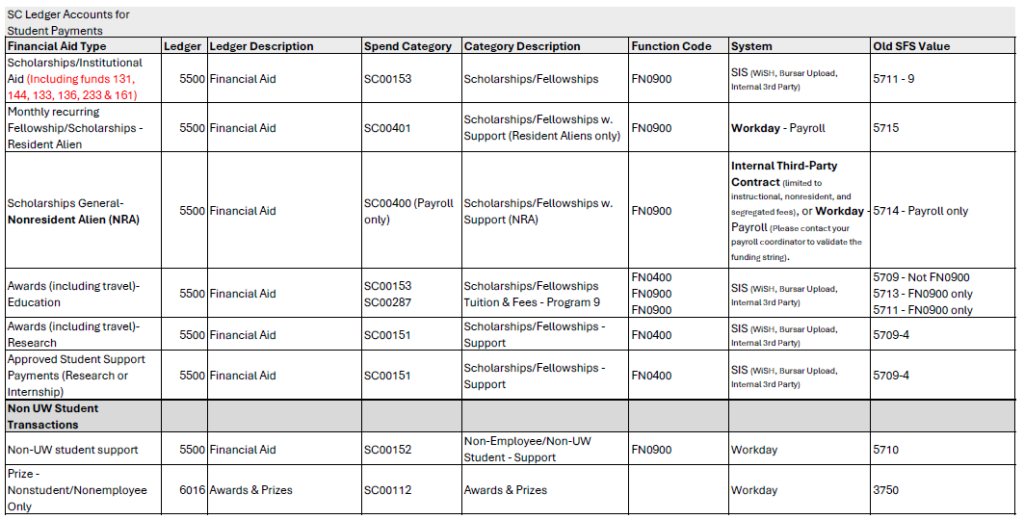
- Enter the appropriate funding – Spend Category, Fund, Function, Project/ Gift/ Grant/ Project Worktag, Cost Center
- Enter a detailed description of the student payment
Scholarship Ledger and Spend Categories